Building a Predictive Text Input in React
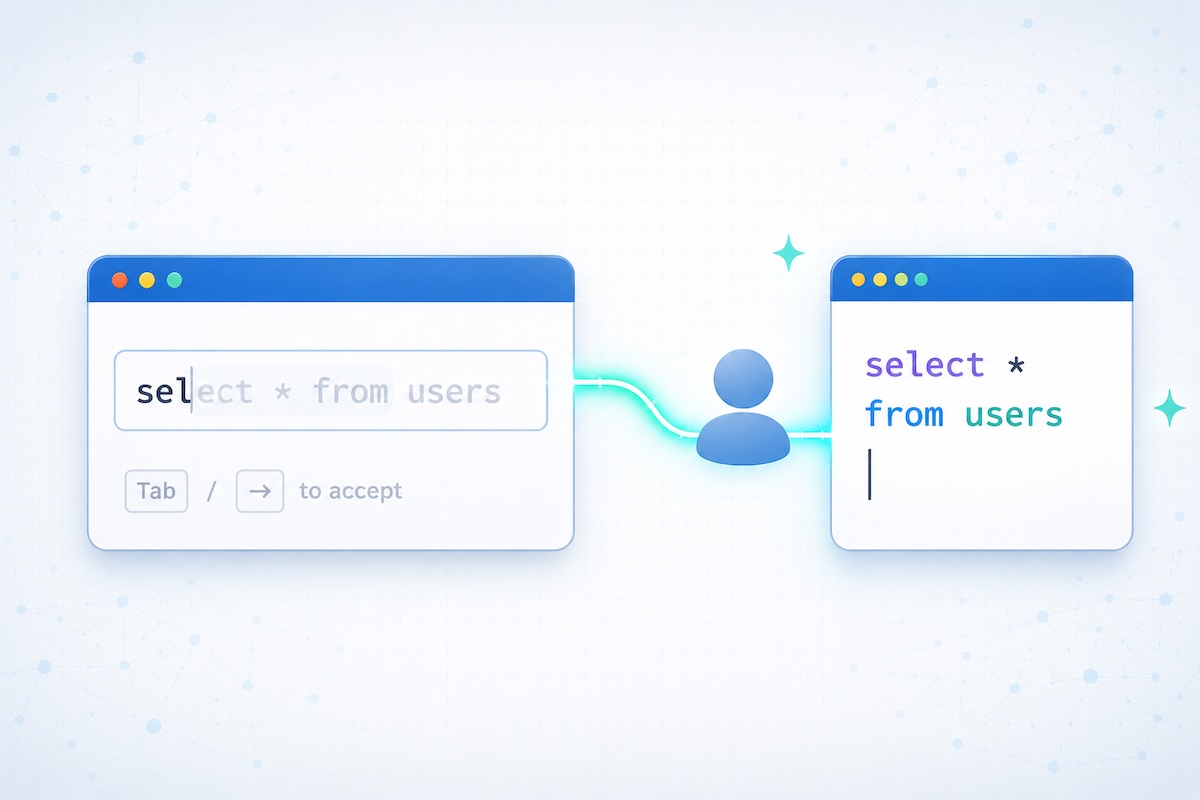
When building an interface for entering query syntax, I wanted autocomplete that felt like an IDE. Since these would be structured queries with known keywords, a standard dropdown autocomplete didn't feel like the right fit. Instead, as the user typed, ghost text should appear inline, offering suggested text to complete the current word or predict the next one, which could then be accepted with the Tab or → key. By showing predictions inline, users could maintain their flow without shifting focus to a dropdown menu.
The <input> and <textarea> DOM elements don't offer this level of interactivity for text input, unfortunately. Instead, we'll need to reach for the contentEditable attribute on another block element such as a div. Here's how I built it.
Why contentEditable?
A regular <input> element renders plain text, and applying different styles to different parts of the content is simply not possible. We need to show the user's typed text normally while rendering the prediction in gray, inline, right at the cursor position.
contentEditable allows you to render arbitrary HTML inside an editable region. The trade-off is that you're now managing a mini rich-text editor, complete with cursor positions, selection ranges, and DOM nodes. React's declarative model doesn't map cleanly onto this, meaning we'll need to perform some imperative DOM manipulation with refs.
The core idea is simple: as the user types, detect the current word and find a matching keyword. If there's a match, insert a styled <span> containing the rest of the keyword. When the user presses Tab, replace the span with real text.
The Component Structure
Here's the skeleton:
tsximport mergeRefs from "merge-refs";
import { type HTMLAttributes, useRef } from "react";
import { classNames } from "@/utils/classNames";

interface PredictiveTextInputProps extends Omit<
  HTMLAttributes<HTMLDivElement>,
  "contentEditable" | "onChange" | "suppressContentEditableWarning"
> {
  keywords: string[];
  onChange?: (value: string) => void;
  placeholder?: string;
  value?: string;
}

export const PredictiveTextInput = forwardRef<
  HTMLDivElement,
  PredictiveTextInputProps
>(({ keywords, onChange, placeholder, value = "", className, ...props }, ref) => {
  const contentRef = useRef<HTMLDivElement>(null);
  const isUpdatingRef = useRef(false);

  const handleInput = () => {
    // Placeholder callback for handling when content changes
  };

  const handleKeyDown = () => {
    // Placeholder callback for presenting predictive text
  };

  return (
    <div
      ref={mergeRefs(ref, contentRef)}
      contentEditable
      suppressContentEditableWarning
      onInput={handleInput}
      onKeyDown={handleKeyDown}
      className={classNames("h-9 w-full overflow-x-auto whitespace-nowrap rounded border px-3 py-2 text-sm", className)}
      data-placeholder={value ? undefined : placeholder}
    />
  );
});
A few things to note:
suppressContentEditableWarningtells React not to warn about children in acontentEditableelement. We're intentionally managing the content ourselves.isUpdatingRefis a flag we'll use to prevent feedback loops when we modify the DOM programmatically. When we insert a prediction span, accept a prediction, or sync an external value change, those DOM modifications can triggerinputandselectionchangeevents. Without this guard, those events would fire our handlers, which would try to update predictions, which would modify the DOM again, causing an infinite loop. By setting this flag before programmatic changes and checking it in our event handlers, we can distinguish "the user did something" from "the component did something."data-placeholderallows styling a placeholder via CSS when the input is empty.- No
idornameattribute. Sincedivelements are not labelable, we can't associate a<label>element with this field using the standardfor/idrelationship. If you need a label, wrap both in a container or usearia-labelledby.
Tracking Cursor Position
With a regular <input>, you get selectionStart and selectionEnd. With contentEditable, you need the Selection and Range APIs:
tsximport { useCallback } from "react";

const getCursorPosition = useCallback(() => {
  const selection = window.getSelection();
  if (!selection || selection.rangeCount === 0 || !contentRef.current) {
    return 0;
  }

  const range = selection.getRangeAt(0);
  if (!contentRef.current.contains(range.startContainer)) {
    return 0;
  }

  // Create a range from start of contenteditable to cursor
  const preCaretRange = range.cloneRange();
  preCaretRange.selectNodeContents(contentRef.current);
  preCaretRange.setEnd(range.startContainer, range.startOffset);

  // Get text content, excluding prediction spans
  const tempDiv = document.createElement("div");
  tempDiv.appendChild(preCaretRange.cloneContents());
  clearPredictions(tempDiv);

  return tempDiv.textContent?.length || 0;
}, []);

function clearPredictions(el: HTMLDivElement) {
  const predictionSpans = el.querySelectorAll('[data-id="prediction-text"]');
  predictionSpans.forEach((span) => span.remove());
}
The key insight here is that we need to exclude prediction spans from the calculation. The prediction text isn't "real". If the user types "filt" and we're showing "er" as a prediction, the cursor position should be 4, not 6.
Getting Clean Text Content
Similarly, when we need to read the actual text content (excluding predictions), we clone the DOM, strip out prediction spans, and return what's left:
tsxconst getCleanText = useCallback(() => {
  if (!contentRef.current) {
    return "";
  }

  const clone = contentRef.current.cloneNode(true) as HTMLDivElement;
  clearPredictions(clone);

  return clone.textContent ?? "";
}, []);
This pattern of "clone, remove prediction spans, read" appears in both getCursorPosition and getCleanText. The duplication is intentional, as getCursorPosition works with a Range fragment, while getCleanText works with the full element.
Finding the Current Word
To show a prediction, we need to know what word the user is currently typing. This means finding the word at the cursor position and checking if the cursor sits at the end of that word. Offering completions while the cursor is parked inside an existing word would be confusing:
tsxconst getCurrentWord = useCallback(() => {
  const cursorPos = getCursorPosition();
  const text = getCleanText();
  const beforeCursor = text.substring(0, cursorPos);

  // Find start of current word using regex
  const wordStart = Math.max(
    0,
    beforeCursor.search(/\W(?:\w(?!\W))+$/) + 1,
  );

  // Check if cursor is at end of word
  const afterCursor = text.substring(cursorPos);
  const nextSpaceIndex = afterCursor.search(/[\s\n]/);
  const isAtWordEnd =
    nextSpaceIndex === -1
      ? cursorPos === text.length
      : afterCursor.substring(0, nextSpaceIndex).trim() === "";

  const wordAtCursor = beforeCursor.substring(wordStart);

  return {
    wordAtCursor,
    wordStart,
    cursorPos,
    isAtWordEnd: isAtWordEnd && wordAtCursor.length > 0,
    cleanText: text,
  };
}, [getCursorPosition, getCleanText]);
The regex /\W(?:\w(?!\W))+$/ finds the last sequence of word characters preceded by a non-word character (or the start of the string). This handles cases like foo.bar where we want "bar" as the current word, not "foo.bar".
Matching Keywords
With the current word identified, finding a prediction is straightforward:
tsxconst findPrediction = useCallback(
  (partialWord: string) => {
    if (partialWord.length === 0) return "";

    const match = keywords.find(
      (keyword) =>
        keyword.toLowerCase().startsWith(partialWord.toLowerCase()) &&
        keyword.toLowerCase() !== partialWord.toLowerCase(),
    );

    return match ? match.substring(partialWord.length) : "";
  },
  [keywords],
);
We return only the untyped portion of the keyword. If the user has typed "filt" and "filter" is a keyword, we return "er", which we'll then display as ghost text.
Removing the Prediction Span
Before we can insert a new prediction, we need a way to clean up any existing one:
tsxconst removePredictionSpan = useCallback(() => {
  const existingSpan = contentRef.current?.querySelector(
    '[data-id="prediction-text"]',
  );
  existingSpan?.remove();
}, []);
This is called before inserting a new prediction (so we don't accumulate stale spans) and when the user types or deletes characters (since their input invalidates the current prediction).
Inserting the Prediction Span
Here's where it gets interesting. We need to insert a styled span at the cursor position:
tsxconst insertPredictionSpan = useCallback(
  (predictionText: string) => {
    if (!contentRef.current || isUpdatingRef.current) {
      return;
    }

    // Remove any existing prediction span first
    removePredictionSpan();

    const selection = window.getSelection();
    if (!selection || selection.rangeCount === 0) {
      return;
    }

    const range = selection.getRangeAt(0);
    if (!contentRef.current.contains(range.startContainer)) {
      return;
    }

    // Create prediction span
    const span = document.createElement("span");
    span.dataset.id = "prediction-text";
    span.className = "pointer-events-none select-none text-gray-400";
    span.textContent = predictionText;

    try {
      isUpdatingRef.current = true;
      range.insertNode(span);

      // Restore cursor position (before the span)
      const newRange = document.createRange();
      newRange.setStartBefore(span);
      newRange.setEndBefore(span);
      selection.removeAllRanges();
      selection.addRange(newRange);
    } finally {
      setTimeout(() => {
        isUpdatingRef.current = false;
      }, 0);
    }
  },
  [removePredictionSpan],
);
The prediction span is styled to be non-interactive: pointer-events-none prevents clicks, select-none prevents text selection, and the gray color visually distinguishes it from typed text.
After inserting the span, we immediately reposition the cursor before it. Without this, the cursor would end up after the prediction, which feels wrong since the user hasn't "typed" that text yet.
Triggering Predictions
With those pieces in place, we can wire them together. The updatePrediction function reads the current word, asks for a matching keyword, and either inserts a prediction span or clears the existing one:
tsxconst updatePrediction = useCallback(() => {
  if (isUpdatingRef.current) {
    return;
  }

  const { wordAtCursor, isAtWordEnd } = getCurrentWord();

  if (!isAtWordEnd) {
    removePredictionSpan();
    return;
  }

  const prediction = findPrediction(wordAtCursor);

  if (prediction) {
    insertPredictionSpan(prediction);
  } else {
    removePredictionSpan();
  }
}, [getCurrentWord, findPrediction, insertPredictionSpan, removePredictionSpan]);
This is the function called from both the input event handler (whenever the user types) and the selectionchange listener we'll set up shortly (when the user moves the cursor). The input handler also forwards the latest text to the parent via onChange:
tsxconst handleInput = useCallback(() => {
  if (isUpdatingRef.current) {
    return;
  }

  onChange?.(getCleanText());
  updatePrediction();
}, [onChange, getCleanText, updatePrediction]);
Both functions guard on isUpdatingRef so our own programmatic DOM changes don't trigger another round of prediction logic.
Accepting Predictions
When the user presses Tab or Right Arrow with an active prediction, we accept it:
tsxconst handleKeyDown = useCallback<KeyboardEventHandler<HTMLDivElement>>(
  (event) => {
    const predictionSpan = contentRef.current?.querySelector(
      '[data-id="prediction-text"]',
    ) as HTMLElement;

    if (event.key === "Enter") {
      event.preventDefault(); // Prevent multiline
    } else if (
      (event.key === "Tab" || event.key === "ArrowRight") &&
      predictionSpan
    ) {
      event.preventDefault();

      isUpdatingRef.current = true;

      const predictionText = predictionSpan.textContent || "";

      // Replace span with text node
      const textNode = document.createTextNode(predictionText);
      predictionSpan.parentNode?.replaceChild(textNode, predictionSpan);

      // Position cursor after the inserted text
      setCursorAfterNode(textNode);
      isUpdatingRef.current = false;
    } else if (
      event.key === "Backspace" ||
      event.key === "Delete" ||
      (event.key.length === 1 && !event.ctrlKey && !event.metaKey)
    ) {
      // Remove prediction when user modifies content
      removePredictionSpan();
    }
  },
  [removePredictionSpan, setCursorAfterNode],
);
The key insight is that we replace the span with a real text node rather than just updating the span's styling. This ensures the text becomes part of the actual content and will be included when we read the value.
Handling Selection Changes
Users might click to reposition their cursor, or use arrow keys to move around. We need to update (or remove) predictions accordingly:
tsxuseEffect(() => {
  let timeoutId: NodeJS.Timeout;

  const handleSelectionChange = () => {
    if (isUpdatingRef.current) {
      return;
    }

    const selection = window.getSelection();
    if (
      selection &&
      contentRef.current &&
      contentRef.current.contains(selection.focusNode)
    ) {
      clearTimeout(timeoutId);
      timeoutId = setTimeout(updatePrediction, 50);
    }
  };

  document.addEventListener("selectionchange", handleSelectionChange);
  return () => {
    document.removeEventListener("selectionchange", handleSelectionChange);
    clearTimeout(timeoutId);
  };
}, [updatePrediction]);
The debounce is important since selectionchange fires frequently during keyboard navigation, and we don't want to thrash the DOM.
Setting Cursor Position
When we need to programmatically place the cursor at a specific character position, we traverse the text node and create a collapsed range:
tsxconst setCursorPosition = useCallback((position: number) => {
  if (!contentRef.current) return;

  const selection = window.getSelection();
  if (!selection) return;

  const range = document.createRange();
  const textNode = contentRef.current.firstChild;

  if (textNode) {
    const clampedPos = Math.min(position, textNode.textContent?.length || 0);
    range.setStart(textNode, clampedPos);
    range.setEnd(textNode, clampedPos);
    selection.removeAllRanges();
    selection.addRange(range);
  }
}, []);
This is the inverse of getCursorPosition: instead of reading where the cursor is, we're telling it where to go. We clamp the position to avoid errors if the text is shorter than expected.
Syncing External Value Changes
If the parent component updates the value prop, we need to reflect that without losing the cursor position:
tsxuseEffect(() => {
  if (!isUpdatingRef.current && contentRef.current) {
    const currentText = getCleanText();
    if (currentText !== value) {
      const cursorPos = getCursorPosition();

      isUpdatingRef.current = true;
      contentRef.current.textContent = value;

      setTimeout(() => {
        setCursorPosition(Math.min(cursorPos, value.length));
        isUpdatingRef.current = false;
      }, 0);
    }
  }
}, [value, getCleanText, getCursorPosition, setCursorPosition]);
The setTimeout gives the DOM time to settle before we try to restore the cursor. Without it, the cursor restoration often fails because the DOM hasn't finished updating.
The contentEditable + React Dance
Working with contentEditable in React requires accepting that you're straddling two mental models:
-
React wants to own the DOM. It maintains a virtual DOM and expects to be the source of truth for what's rendered.
-
contentEditable needs direct DOM access. Cursor positions, selections, and fine-grained text manipulation don't map onto React's props-and-state model.
The solution is to keep React at arm's length. We use suppressContentEditableWarning to acknowledge we're going off-script, and we do most of our work through refs and direct DOM manipulation. The isUpdatingRef flag prevents our programmatic changes from triggering React updates that would fight us.
The setTimeout(..., 0) pattern appears several times. It's a way of saying "let the current DOM operation complete before doing the next thing." This is often necessary when chaining operations like "update content, then restore cursor."
Key Takeaways
-
contentEditable is powerful but low-level. You're essentially building a text editor. Budget time for cursor management, selection handling, and edge cases.
-
Predictions should appear at word boundaries. Showing ghost text mid-word is disorienting. Detect whether the cursor is at the end of a word before suggesting completions.
-
Accept predictions with Tab and Arrow keys. This matches IDE conventions and lets users accept without moving their hands.
-
Use refs for imperative operations. React's declarative model doesn't fit here. Embrace direct DOM manipulation and use flags to prevent feedback loops.
-
Debounce selection change handlers. The
selectionchangeevent fires frequently. Without debouncing, you'll waste cycles updating predictions that will immediately be replaced.
The result is an input that feels native and responsive: predictions appear instantly as you type, and accepting them is a single keystroke. It's more work than a dropdown autocomplete, but for power-user interfaces like query builders, the improved UX is worth it.